Networking & Computer Hacks, Android phone apps & Games

Showing posts with label MS Office. Show all posts

Friday, 14 February 2020

February 14, 2020

How to create a PivotTable in Excel

How to create a PivotTable in Excel


A PivotTable is a powerful tool to calculate, summarize, and analyze data that lets you see comparisons, patterns, and trends in your data.

Create a PivotTable

  1. Select the cells you want to create a PivotTable from.

    Note: Your data shouldn't have any empty rows or columns. It must have only a single-row heading.
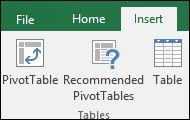
  2. Select Insert > PivotTable.
           Pivot Table
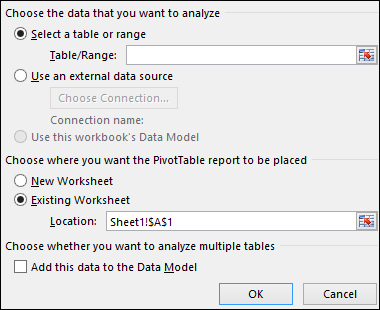
  3. Under Choose the data that you want to analyze, select Select a table or range
           Pivot Table
  4. In Table/Range, verify the cell range.
  5. Under Choose where you want the PivotTable report to be placed, select New worksheet to place the PivotTable in a new worksheet or Existing worksheet and then select the location you want the PivotTable to appear.
  6. Select OK.

Building out your PivotTable

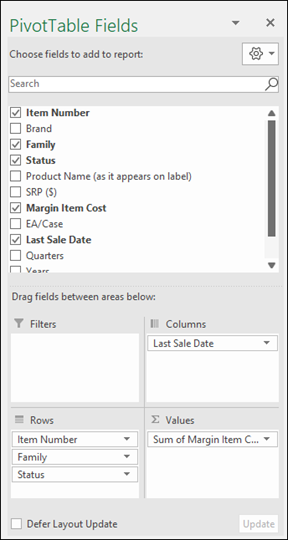
  1. To add a field to your PivotTable, select the field name checkbox in the PivotTables Fields pane.
    Note: Selected fields are added to their default areas: non-numeric fields are added to Rows, date and              time hierarchies are added to Columns, and numeric fields are added to Values.
    Pivot Table
  2. To move a field from one area to another, drag the field to the target area.

Wednesday, 12 February 2020

February 12, 2020

Create an email signature in Outlook


Create an email signature in Outlook
You can create personalized signatures for your email messages that include text, images, your electronic business card, a logo, or even an image of your handwritten signature. You can set it up so that signatures can be added automatically to all outgoing messages, or you can choose which messages include a signature.


Add a signature to messages

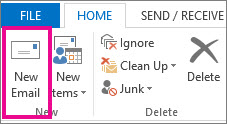
  1. On the Home tab, select New Email.
    New mail command
  2. Select the Message tab.
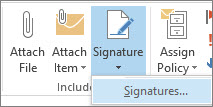
  3. In the Include group, select Signature, and then choose Signatures.
    Signature command
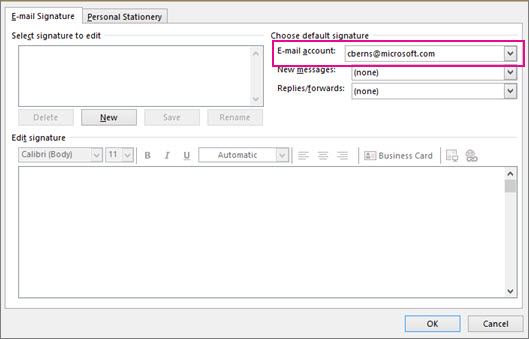
  4. Under Choose default signature, in the E-mail account list, select an email account to associate with the signature.
    Create a signature
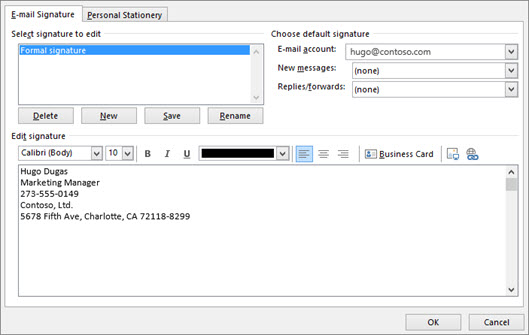
  5. Under Select signature to edit, select New and type a name for the signature.
  6. Under Edit signature, type the signature that you want to use and select OK.
    Type a new signature to use in your email

Friday, 25 October 2019

October 25, 2019

Frequently used shortcuts in MS Excel

Frequently used shortcuts

Frequently used shortcuts

This table lists the most frequently used shortcuts in Excel.

To do this
Press
Close a workbook
Ctrl+W
Open a workbook
Ctrl+O
Go to the Home tab
Alt+H
Save a workbook
Ctrl+S
Copy
Ctrl+C
Paste
Ctrl+V
Undo
Ctrl+Z
Remove cell contents
Delete
Choose a fill color
Alt+H, H
Cut
Ctrl+X
Go to Insert tab
Alt+N
Bold
Ctrl+B
Center align cell contents
Alt+H, A, C
Go to Page Layout tab
Alt+P
Go to Data tab
Alt+A
Go to View tab
Alt+W
Open context menu
Shift+F10, or Context key
Add borders
Alt+H, B
Delete column
Alt+H, D, C
Go to Formula tab
Alt+M
Hide the selected rows
Ctrl+9
Hide the selected columns
Ctrl+0

Wednesday, 23 October 2019

October 23, 2019

Save or convert to PDF or XPS in MS Office

Save or convert to PDF or XPS


Excel for Office 365 Word for Office 365 Publisher for Office 365 Access for Office 365 More...

You can use the Office programs to save or convert your files to PDFs so that you can share them or print them using commercial printers. And you won’t need any other software or add-ins.

Use PDF format when you want a file that:


  • Looks the same on most computers.
  • Has a smaller file size.
  • Complies with an industry format.


Examples include resumes, legal documents, newsletters, files that are intended to be read (not edited) and printed, and files that are intended for professional printing.

Windows

To export or save as PDF, in your Office file, on the File menu, click Export or Save As

Office for Mac

To save your file as a PDF in Office for Mac follow these easy steps:

Click File

Click Save As

Click File Format towards the bottom of the window
Use the File Format tool in Word's Save As to select other formats, like PDF, to save to
Select PDF from the list of available file formats

Give your file a name, if it doesn't already have one, then click Export.

iOS

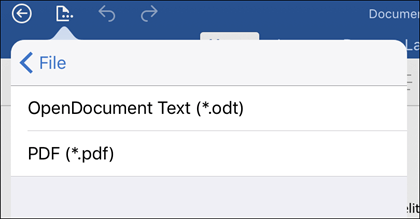
To export your Word document or Excel workbook to PDF format on iOS tap the File button at the top left, choose Export and then PDF.

Tap File > Export to export your document to PDF

Portable Document Format (PDF) preserves document formatting and enables file sharing. When the PDF format file is viewed online or printed, it retains the format that you intended. The PDF format is also useful for documents that will be reproduced using commercial printing methods. PDF is accepted as a valid format by many agencies and organizations, and viewers are available on a wider variety of platforms than XPS.

XML Paper Specification (XPS)    is an electronic file format that preserves document formatting and enables file sharing. The XPS format ensures that when the file is viewed online or printed, it retains exactly the format that you intended, and that data in the file cannot be easily changed.